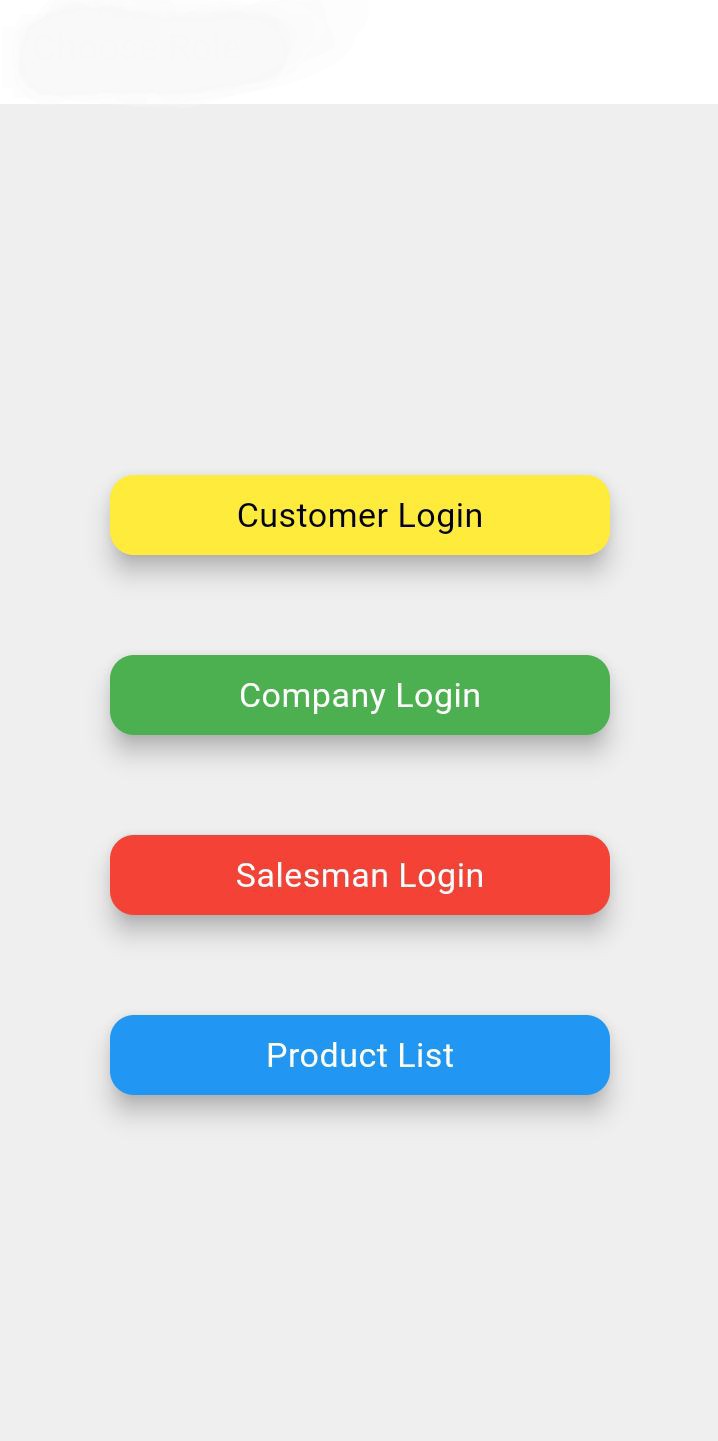
Choose Your Role
Open the app and select your role. For retail store owners and stockists, click on the yellow "Customer Login" button to proceed.
Access the Dashboard
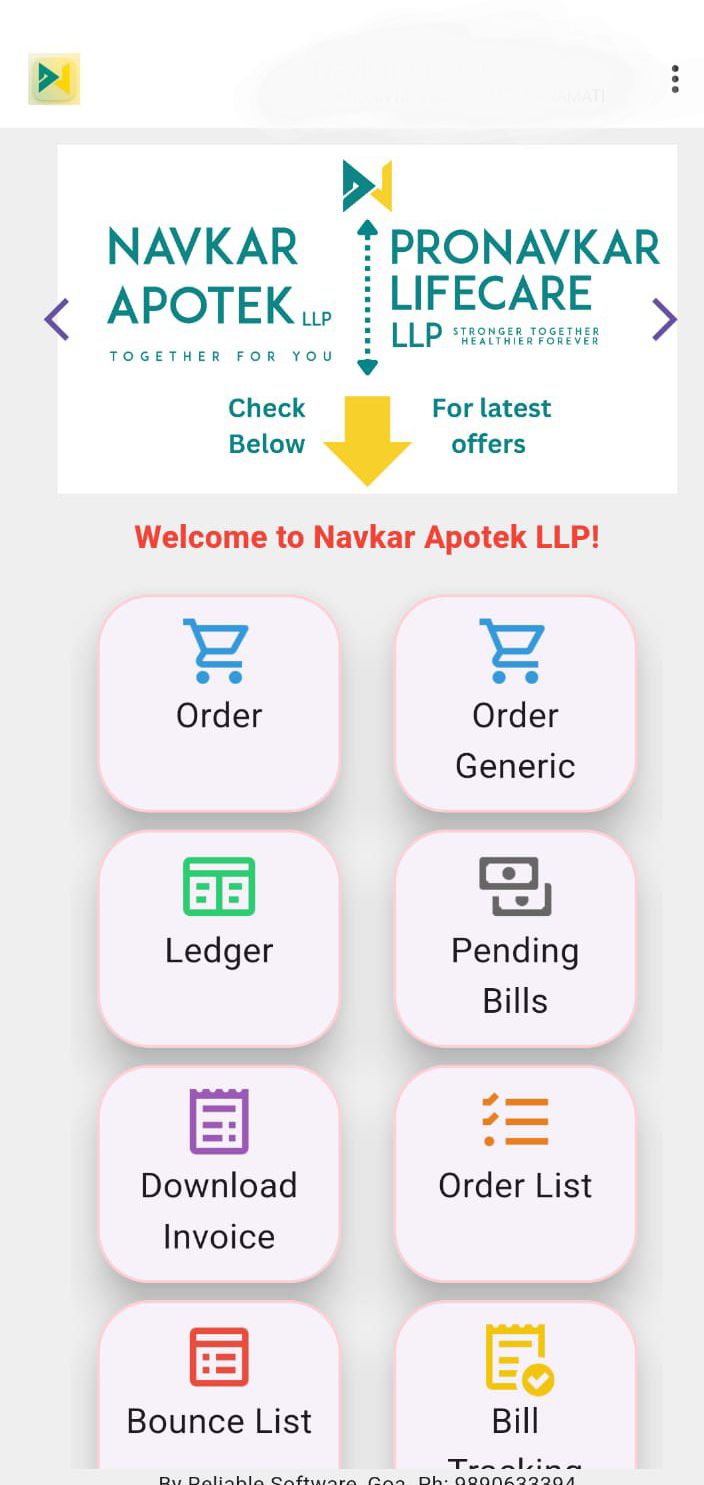
Once logged in, you will see your personalized dashboard. To search and buy medicines, tap on the "Order" or "Order Generic" grid icon at the top.
You can also track bills, view ledgers, or download invoices from here.
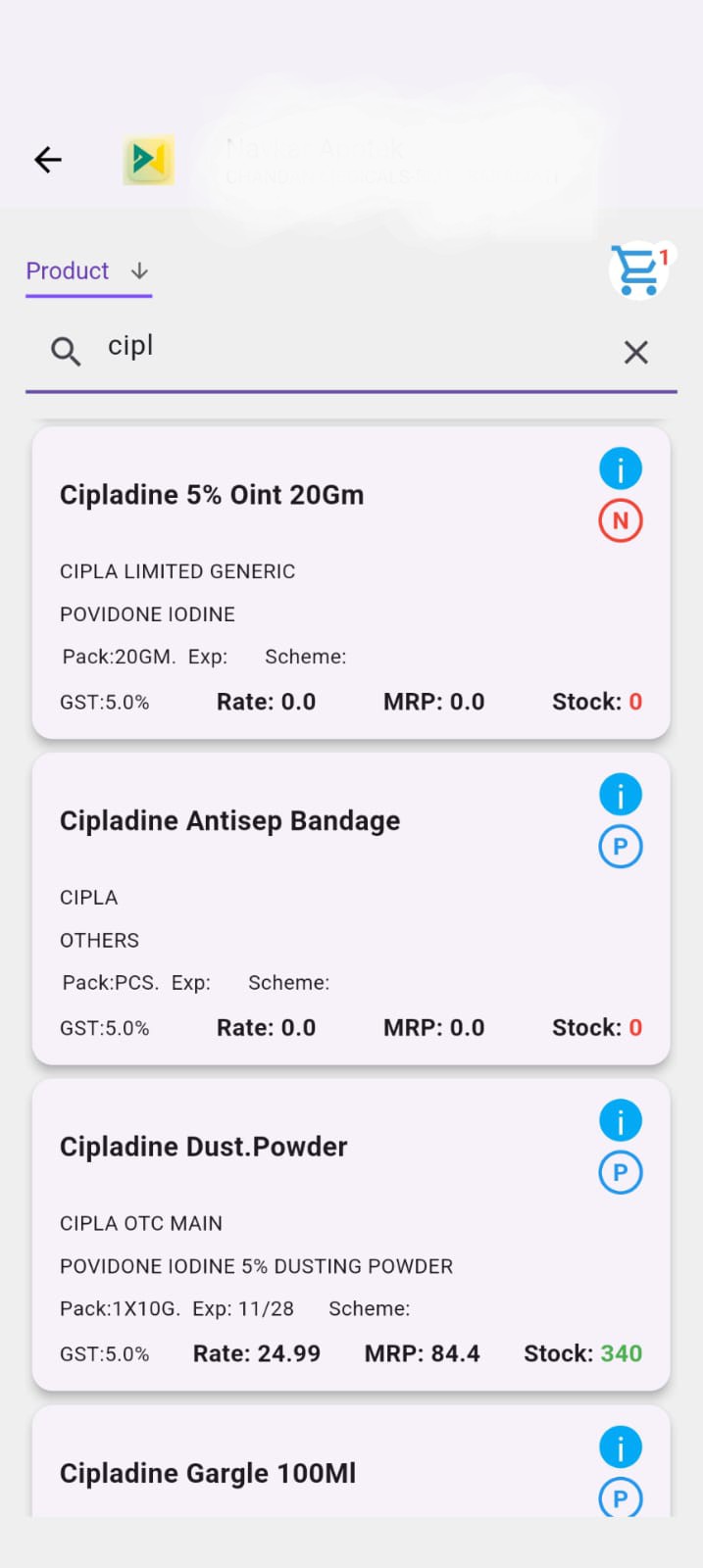
Search for Products
Use the top search bar to type the medicine name (e.g., "Cipladine"). Browse through the available options, check company details, schemes, live stock availability (marked in green), and rates.
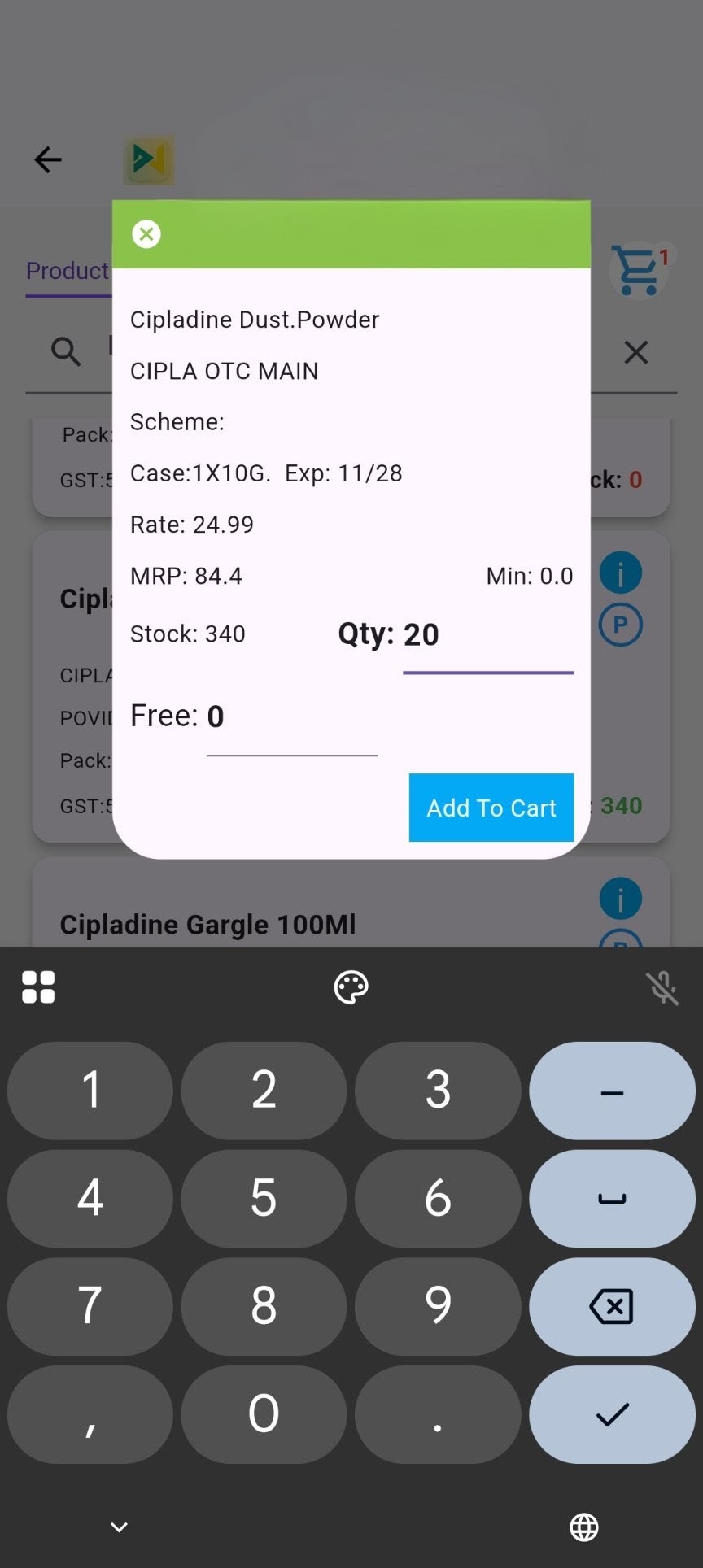
Enter Quantity & Add to Cart
Tap on the desired medicine to open the ordering pop-up. Type the required quantity (Qty) using the on-screen keypad and click the blue "Add To Cart" button.
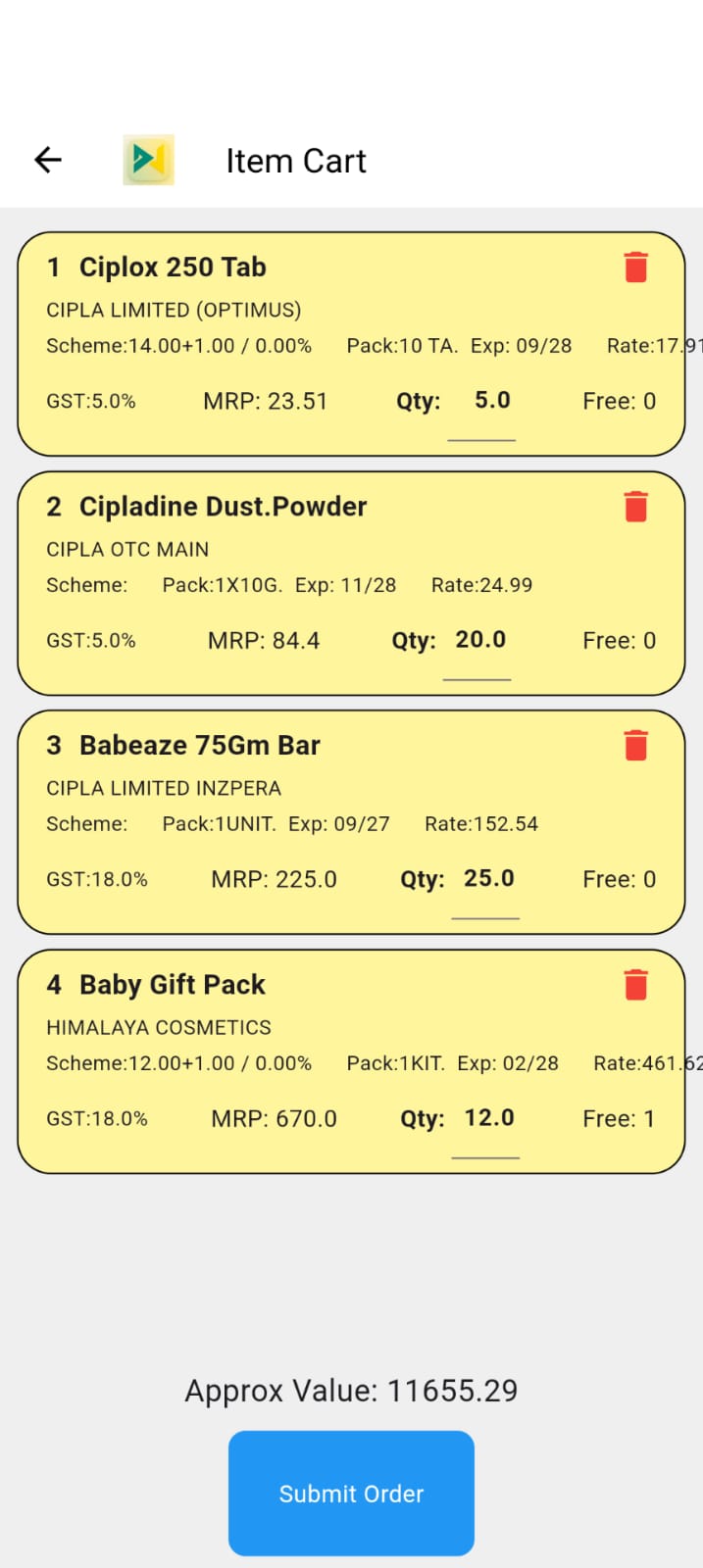
Review Cart & Submit Order
Open your "Item Cart" to review all selected items, schemes, and the approximate total order value. Once verified, simply click the blue "Submit Order" button at the bottom to finalize your purchase.